Welcome to the Reset To Thrive Programme and Community!
This page is designed to help you get the most out of your time with us.
How do I Join Live Classes and Webinars?
We offer a variety of ways you can access extra support through our live and recorded Webinars, Community Chats and Classes. When a new offering is available we will send you an email. Once you register for the class you will be sent a confirmation email with a link to join.
You can also go to our home page on our website at anytime. If you are logged in you will be able to see what we currently have on offer.
I'm not receiving emails from you, what should I do?
Follow these steps:
1. Add our email address info@resettothrive.co.uk to your Contacts / Address Book. This tells your email provider that our messages are safe.
2. Check your “Promotions,” “Updates,” or “Spam/Junk” folders If you find an email there, open it and click “Not spam” (or move it to your Inbox). This trains your inbox to recognise future emails.
3. Gmail users: Gmail sometimes filters automated emails away from the main inbox. Turning off “dynamic email filtering” can help.
4. Outlook / Hotmail users: Add our email address under: Settings → Mail → Junk email → Safe senders and domains
5. If you use security software (Norton, Trend, etc.) Mark our email address as trusted.
I'm having trouble entering a webinar/class. The link doesn't connect to the live session.
What should I do?
Most of the time, the issue is that your device is blocking pop-ups, which prevents Zoom from opening from our website: resettothrive.co.uk. Below are very simple steps to allow pop-ups for the site. You only need to do this once.
✅ Step 1: Allow Pop-Ups for resettothrive.co.uk
Google Chrome
1. Open Chrome.
2. Click the three dots (top right) → Settings.
3. Go to Privacy and security → Site settings → Pop-ups and redirects.
4. Choose “Sites can send pop-ups and use redirects.” OR click Add next to “Allowed to send pop-ups and use redirects” and enter: resettothrive.co.uk
Microsoft Edge
1. Open Edge.
2. Click the three dots → Settings.
3. Go to Cookies and site permissions → Pop-ups and redirects.
4. Turn off “Block (recommended)”. OR add resettothrive.co.uk under Allow.
Mozilla Firefox
1. Open Firefox.
2. Click the menu (three lines) → Settings. Select Privacy & Security.
3. Under Permissions, uncheck Block pop-up windows. OR click Exceptions and add: resettothrive.co.uk
Safari (Mac)
1. Open Safari.
2. Go to Safari → Settings (or Preferences) → Websites tab.
3. Click Pop-up Windows on the left. Next to resettothrive.co.uk, choose Allow.
Additional Things That May Help
1. Strict privacy settings can block Zoom from opening Browsers sometimes block Zoom links when “Tracking Prevention,” “Strict Mode,” or similar features are turned on. If possible, choose Standard or Balanced privacy settings. This is especially important in Firefox and Microsoft Edge.
2. iPhone/iPad users may need to adjust device settings Go to Settings → Safari → Apps. Turn off “Block Pop-ups”. If Zoom still won’t open,
temporarily turn off “Prevent Cross-Site Tracking”.
3. Make sure Zoom is installed If Zoom is missing or out of date, your browser might freeze instead of opening the meeting. Download/update here: https://zoom.us/download
I'm having trouble logging into the Programme. What should I do?
1. Open the Login Page Click this link: https://resettothrive.co.uk/courses/reset-to-thrive-programme-copy/dashboard
2. Enter Your Email. Type in the same email address you used to sign up.
3. Enter Your Password If you don’t know your password: Click “Forgot Password?” under the login box. You will then receive an email to set a new password. Open that email and follow the link to create a password.
4. Try a Different Device or Browser (If Needed) Sometimes login issues are caused by the browser: Try a different browser (Chrome, Safari, Edge) Or try logging in on your phone or tablet.
How do I download a webinar or class recordng?
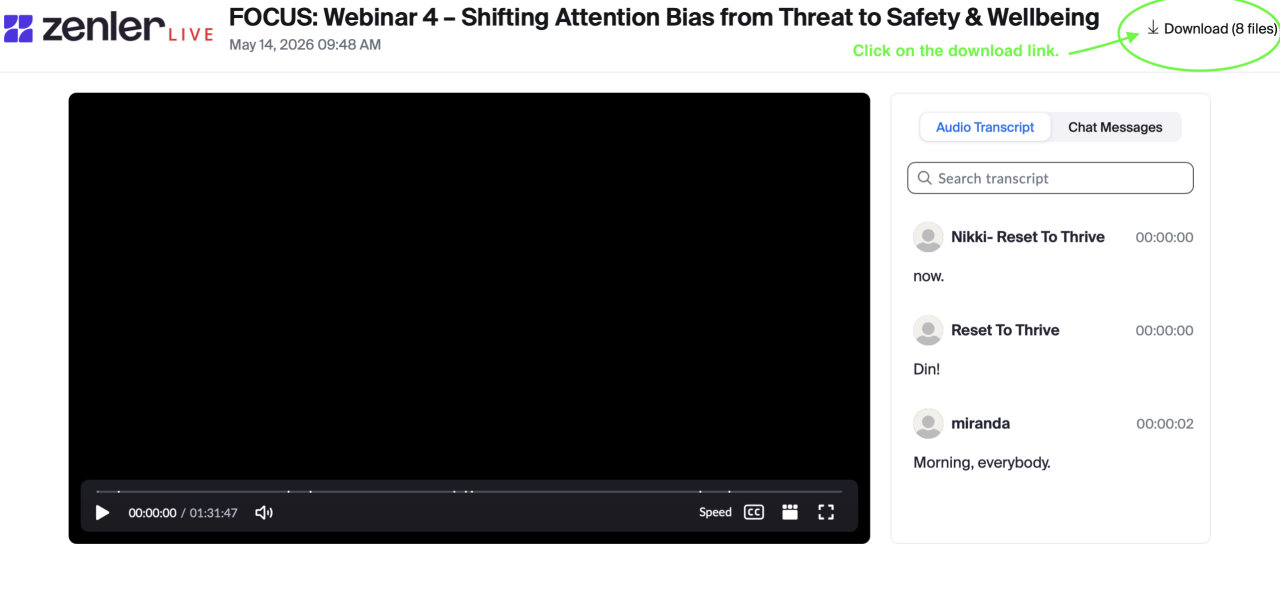
1. Click on the recording link sent to your email after the live event has taken place.
2. Click on the Download button. You'll find it on the top right corner of the webpage. See screenshot below.
3. Find the recording on your computers Download Folder.
4. If nothing is happening when you click on the recording link in your email your device maybe blocking pop ups. Please see ✅ Step 1: Allow Pop-Ups above.
❤️ Still Not Working?
Please reach out anytime. Nikki will work with you and our tech support to get it sorted out. Just send an email at info@resettothrive.co.uk with the issue and any screenshots of what is happening.